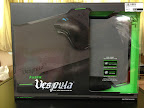
I got a Razer Vespula as a present!
Long ago, there was this mousepad called Everglide that sold for $20-30. At that time, I thought it was quite expensive, but finally bought one when I found one cheap. It was great. There's a dearth of hard mousepads now; only gaming companies seem to be making them and I could only find Razer ones in stores. $30 seems a bargain for a hard mousepad!
Mousepads and wrist rests are 2 things that you think, "I can use almost any everyday object as one, what's the point of paying for one?" I used to think like that, until I got my Everglide, and found out good mousepads really make a difference.
I like the Vespula because it's double-sided and has a wrist rest.
The smoother side has a meter icon.
The rougher side has a... handbrake icon? Actually, both sides feel very slick to my mouse. I think the rougher side could be slower.
A word on the feet of the mousepad, which no one has mentioned. The wrist rest is permanently attached to a rubber mat, slightly smaller than the pad. When the mousepad is on the rubber mat, the mat is in contact with the lower, unused mousing surface. This means the whole pad is supported and won't flex/sag. You can also use the mousepad without the mat. In this case, the pad is only supported by the green rubber feet. The mousepad doesn't seem that stiff, so I think it'll flex so that the middle also touches the table.
Nothing to say about the wrist rest. It feels just like any other wrist rest.
Showing posts with label pointing devices. Show all posts
21 April, 2013
03 March, 2013
Logitech MX Air
This is the best looking mouse I've ever seen.
What's so special about this mouse? Well, besides functioning as a normal mouse, it can also be motion controlled, hence the name "Air". It uses accelerometers like the Wii remote. It's designed for home theaters where you may not have a surface to use it on.
It's also really hard to photograph without proper lighting. There are better pictures out there.
The buttons are also backlit. The scroll bar is touch sensitive. There are many mice with touch sensitive scroll bars now, like Apple's Magic Mouse, I think Microsoft's Arc Mouse, and Logitech has a few touch mice too. I particularly like the inertial scrolling in the mouse. Since there's no physical feedback to a touch scroll bar, there's a small speaker that makes clicking noises when you use it. Some people might find it irritating, I don't because it's very soft. If you flick it hard, the clicking noises continue, like a wheel. At that time, I think only the MX Revolution had inertial scrolling. That was interesting, they did it by using an extra heavy wheel, and the mouse had a clutch that would release the wheel if you spun it hard enough, allowing it to spin freely.
In accordance with my protecting all my devices as much as possible, I stuck PTFE tape on the mouse feet to extend their life. Oh it uses an infrared (848 nm) laser for desk tracking.
It even comes with a cleaning cloth with its name on it, showing Logitech paid more attention to the design of this mouse. Some other products that came with cleaning cloths: MacBooks, iPod Touch (but not iPhone)
It charges on a dock. You can see the charging contacts on the bottom of the mouse in one of the pictures above.
I don't think they make it anymore. What a pity. Some problems with it were: the motion tracking wasn't very good, it tended to drift (that's probably why the Wii needs a sensor bar), and my main issue is the battery life is very short (20 hours!), especially when there are mice with battery life in years now.
I bought it for AUD139 in 2008, which is surprisingly cheap. It was selling for >$200 SGD, and even Amazon is more expensive.
What's so special about this mouse? Well, besides functioning as a normal mouse, it can also be motion controlled, hence the name "Air". It uses accelerometers like the Wii remote. It's designed for home theaters where you may not have a surface to use it on.
It's also really hard to photograph without proper lighting. There are better pictures out there.
The buttons are also backlit. The scroll bar is touch sensitive. There are many mice with touch sensitive scroll bars now, like Apple's Magic Mouse, I think Microsoft's Arc Mouse, and Logitech has a few touch mice too. I particularly like the inertial scrolling in the mouse. Since there's no physical feedback to a touch scroll bar, there's a small speaker that makes clicking noises when you use it. Some people might find it irritating, I don't because it's very soft. If you flick it hard, the clicking noises continue, like a wheel. At that time, I think only the MX Revolution had inertial scrolling. That was interesting, they did it by using an extra heavy wheel, and the mouse had a clutch that would release the wheel if you spun it hard enough, allowing it to spin freely.
In accordance with my protecting all my devices as much as possible, I stuck PTFE tape on the mouse feet to extend their life. Oh it uses an infrared (848 nm) laser for desk tracking.
It even comes with a cleaning cloth with its name on it, showing Logitech paid more attention to the design of this mouse. Some other products that came with cleaning cloths: MacBooks, iPod Touch (but not iPhone)
It charges on a dock. You can see the charging contacts on the bottom of the mouse in one of the pictures above.
I don't think they make it anymore. What a pity. Some problems with it were: the motion tracking wasn't very good, it tended to drift (that's probably why the Wii needs a sensor bar), and my main issue is the battery life is very short (20 hours!), especially when there are mice with battery life in years now.
I bought it for AUD139 in 2008, which is surprisingly cheap. It was selling for >$200 SGD, and even Amazon is more expensive.
14 December, 2010
Problems with Razer Naga
Some problems are showing up with my Naga. That's why the longer the time to write a review, the better.
The main problem is in World of Warcraft. The sensitivity will suddenly increase, and the mouse appears to have acceleration as well. This effect remains even after switching apps. I think it might have something to do with other mouse drivers installed on my computer. Thankfully, once it increases, the sensitivity remains at that level until I change the mouse sensitivity, so it's easy to get used to.
Macro recording isn't on-the-fly. In fact, you can't record macros when focused on other applications at all. This makes it quite troublesome to record macros. For example, you have to guess the timings of subsequent actions. Also, macros would be better if they specified where on the screen the mouse was clicked.
The main problem is in World of Warcraft. The sensitivity will suddenly increase, and the mouse appears to have acceleration as well. This effect remains even after switching apps. I think it might have something to do with other mouse drivers installed on my computer. Thankfully, once it increases, the sensitivity remains at that level until I change the mouse sensitivity, so it's easy to get used to.
Macro recording isn't on-the-fly. In fact, you can't record macros when focused on other applications at all. This makes it quite troublesome to record macros. For example, you have to guess the timings of subsequent actions. Also, macros would be better if they specified where on the screen the mouse was clicked.
30 November, 2010
Razer Naga
Many years ago, my friend bought one of the first Razer mice. It was a 1000 DPI Boomslang, with the controversial low profile and long buttons, encouraging people to use the fingertip grip. Back then, optical mice hadn't been invented and this resolution was achieved using the ball, although the sensors inside were optical. I now have the pleasure of owning a Razer Naga, and am reviewing it here for the benefit of everyone.
Features/specifications
Hardware
My first impression was the mouse is smaller than I thought. Maybe it's the shape, but it's only 17 mm longer than the Orochi, Razer's portable mouse. It still fits the hand very well and is comfortable to hold. The array of buttons on the left do not affect the ergonomics in any way or make the mouse harder to handle or pick up.
The lighting is nice. I especially like the scroll wheel and the pulsating logo, but too bad it doesn't change very smoothly, like the MacBook's sleep light. The Razer logo cuts off abruptly. I realize that LED lights aren't everyone's thing, so it's good that you can disable all the lights in Razer's software.
I'm not sure how many click positions a normal scroll wheel has, but since Razer is advertising this with 24, I'm thinking the average is less than 24. The scroll wheel feels easy to move. I prefer Logitech's inertial scrolling though.
The cable is coated in a braided fiber, instead of the usual PVC. This is a higher-end form of insulation. In my experience, PVC insulation may sometimes melt or become sticky.
One thing that surprised me was that the mouse lacked on-the-fly hardware sensitivity adjustment. An important factor in gaming mice is customization, and being able to bring that anywhere. Although I do not expect this to have Synapse (on-board memory), I thought it would have sensitivity adjustment. The only adjustment the mouse offers is a switch on the bottom that changes the mapping of the number pad, which doesn't really do anything. These problems are fixed with Razer's software though, so it is only a problem if you use the mouse away from your default computer.
The number pad
This being the key feature of the mouse, deserved its own section. Razer is telling you to give yourself time to get used to the number pad. I guess this is to become fully accustomed and are able to press the keys without looking. They even provide stickers for feeling so you know which key you're on. However, don't be afraid to jump right in and start using the mouse.
If you just plug it into a new computer, the number pad maps either to the 1 to = keys on your keyboard, or the number pad, depending on the switch in the mouse. This allows you to get some degree of use out of the mouse without any software, but it's with the software that the mouse really shines.
As of now, I haven't tested this with any games, so I can't tell how good it is, but I think even if you have to look down to see what button to press, it's still faster than removing your hand from the mouse.
Software
Software is what makes or breaks a gaming mouse. I believe the main problem with cheaper mice is not build quality or features or DPI, but lack of good software. This area is where the Naga really shines.
The software is highly customisable. Macros can be assigned to any button, or even the scroll wheel. Interestingly, OS X supports 5 mouse buttons. I wonder how many Windows supports? The lack of on-the-fly sensitivity adjustment is corrected in the software.
Each of the 12 buttons can be assigned to do anything you want, or nothing at all. I suspect this is a new feature in the software, because some older reviews complained about the lack of this. This is a huge feature and the reason why I wanted a Naga over other Razer mice - if you can program keystrokes/macros to the buttons, the mouse can be used in many other applications, such as Photoshop!
It has standard control over sensitivity and acceleration (OS X doesn't have settings for acceleration). One thing I don't like is there is no control over scrolling speed, which is a bit slow.
Profiles with automatic switching, based on application
I'm a fan of automation. I think many computer tasks can be greatly simplified with macros, but sadly most software is too inaccessible/hard to learn. Interestingly, some software is better for keyboard commands and some for mouse. The Naga's software's macro programming is excellent, and even has a delay setting. It records keyboard presses and mouse clicks.
Lastly, the lighting can be controlled and the firmware is upgradeable!
One last word on the software: many manufacturers add OS X support as an afterthought. Not all Razer mice can be used on OS X. It's good to see that the OS X support here is fully featured, and it's only logical to expect that the Windows version has even more features.
Conclusion
This mouse has good hardware, and excellent software.
Features/specifications
- 5600 DPI Razer Precision 3.5G Laser Sensor
- 1000Hz Ultrapolling™ / 1ms response time
- 200 inches per second max tracking speed
- Zero-acoustic Ultraslick™ mouse feet
- 17 MMO-optimized buttons (including 12 button thumb grid)
- Optional MMO-specific software AddOns
- Unlimited character profiles with AddOns
- Approximate size: 116L x 69W x 41.6H (in mm)
- 7 foot lightweight, braided fiber cable
- Scroll wheel with 24 individual click positions
- Anti-slip rubber coating
- Blue logo with pulsating glow
- MMO-optimized multi-button thumb grid
- Gold-plated USB connector
Hardware
My first impression was the mouse is smaller than I thought. Maybe it's the shape, but it's only 17 mm longer than the Orochi, Razer's portable mouse. It still fits the hand very well and is comfortable to hold. The array of buttons on the left do not affect the ergonomics in any way or make the mouse harder to handle or pick up.
The lighting is nice. I especially like the scroll wheel and the pulsating logo, but too bad it doesn't change very smoothly, like the MacBook's sleep light. The Razer logo cuts off abruptly. I realize that LED lights aren't everyone's thing, so it's good that you can disable all the lights in Razer's software.
I'm not sure how many click positions a normal scroll wheel has, but since Razer is advertising this with 24, I'm thinking the average is less than 24. The scroll wheel feels easy to move. I prefer Logitech's inertial scrolling though.
The cable is coated in a braided fiber, instead of the usual PVC. This is a higher-end form of insulation. In my experience, PVC insulation may sometimes melt or become sticky.
One thing that surprised me was that the mouse lacked on-the-fly hardware sensitivity adjustment. An important factor in gaming mice is customization, and being able to bring that anywhere. Although I do not expect this to have Synapse (on-board memory), I thought it would have sensitivity adjustment. The only adjustment the mouse offers is a switch on the bottom that changes the mapping of the number pad, which doesn't really do anything. These problems are fixed with Razer's software though, so it is only a problem if you use the mouse away from your default computer.
The number pad
This being the key feature of the mouse, deserved its own section. Razer is telling you to give yourself time to get used to the number pad. I guess this is to become fully accustomed and are able to press the keys without looking. They even provide stickers for feeling so you know which key you're on. However, don't be afraid to jump right in and start using the mouse.
If you just plug it into a new computer, the number pad maps either to the 1 to = keys on your keyboard, or the number pad, depending on the switch in the mouse. This allows you to get some degree of use out of the mouse without any software, but it's with the software that the mouse really shines.
As of now, I haven't tested this with any games, so I can't tell how good it is, but I think even if you have to look down to see what button to press, it's still faster than removing your hand from the mouse.
Software
Software is what makes or breaks a gaming mouse. I believe the main problem with cheaper mice is not build quality or features or DPI, but lack of good software. This area is where the Naga really shines.
The software is highly customisable. Macros can be assigned to any button, or even the scroll wheel. Interestingly, OS X supports 5 mouse buttons. I wonder how many Windows supports? The lack of on-the-fly sensitivity adjustment is corrected in the software.
Each of the 12 buttons can be assigned to do anything you want, or nothing at all. I suspect this is a new feature in the software, because some older reviews complained about the lack of this. This is a huge feature and the reason why I wanted a Naga over other Razer mice - if you can program keystrokes/macros to the buttons, the mouse can be used in many other applications, such as Photoshop!
It has standard control over sensitivity and acceleration (OS X doesn't have settings for acceleration). One thing I don't like is there is no control over scrolling speed, which is a bit slow.
Profiles with automatic switching, based on application
I'm a fan of automation. I think many computer tasks can be greatly simplified with macros, but sadly most software is too inaccessible/hard to learn. Interestingly, some software is better for keyboard commands and some for mouse. The Naga's software's macro programming is excellent, and even has a delay setting. It records keyboard presses and mouse clicks.
Lastly, the lighting can be controlled and the firmware is upgradeable!
One last word on the software: many manufacturers add OS X support as an afterthought. Not all Razer mice can be used on OS X. It's good to see that the OS X support here is fully featured, and it's only logical to expect that the Windows version has even more features.
Conclusion
This mouse has good hardware, and excellent software.
Subscribe to:
Posts (Atom)


